Use a Fixed Date plan and track Actual Progress
Keep an earlier forecast to see how your finances actually compare over time. A Fixed Date plan preserves the date and starting finances you choose, while your recorded balances show what happened afterward.
Keep the original forecast
Create a copy of the plan you want to preserve. In Create Plan, open the gear icon and select Show advanced options, then set Start Date to Fixed Date.
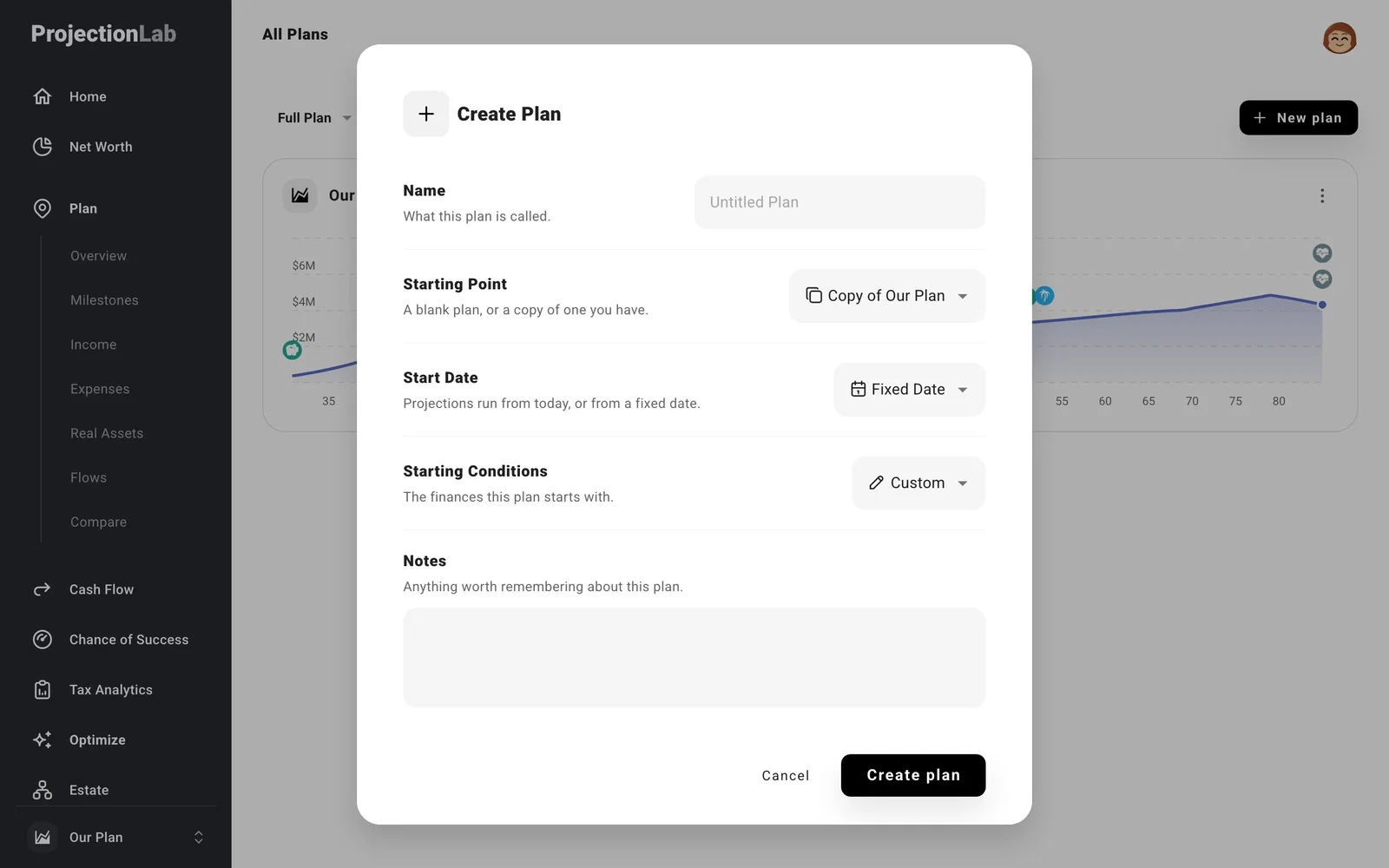
ProjectionLab selects Custom starting conditions so the forecast keeps its own starting finances. Create the plan, then go to Settings > Start Date and enter the date it should begin.
Open Net Worth with that plan selected if you need to adjust those starting balances. Your separate Now plan can keep following your current finances.
Compare with Actual Progress
Update your current balances as time passes, or add past balances. On Plan > Overview, select the Net Worth line chart. Actual Progress shows your recorded balances alongside the original forecast.
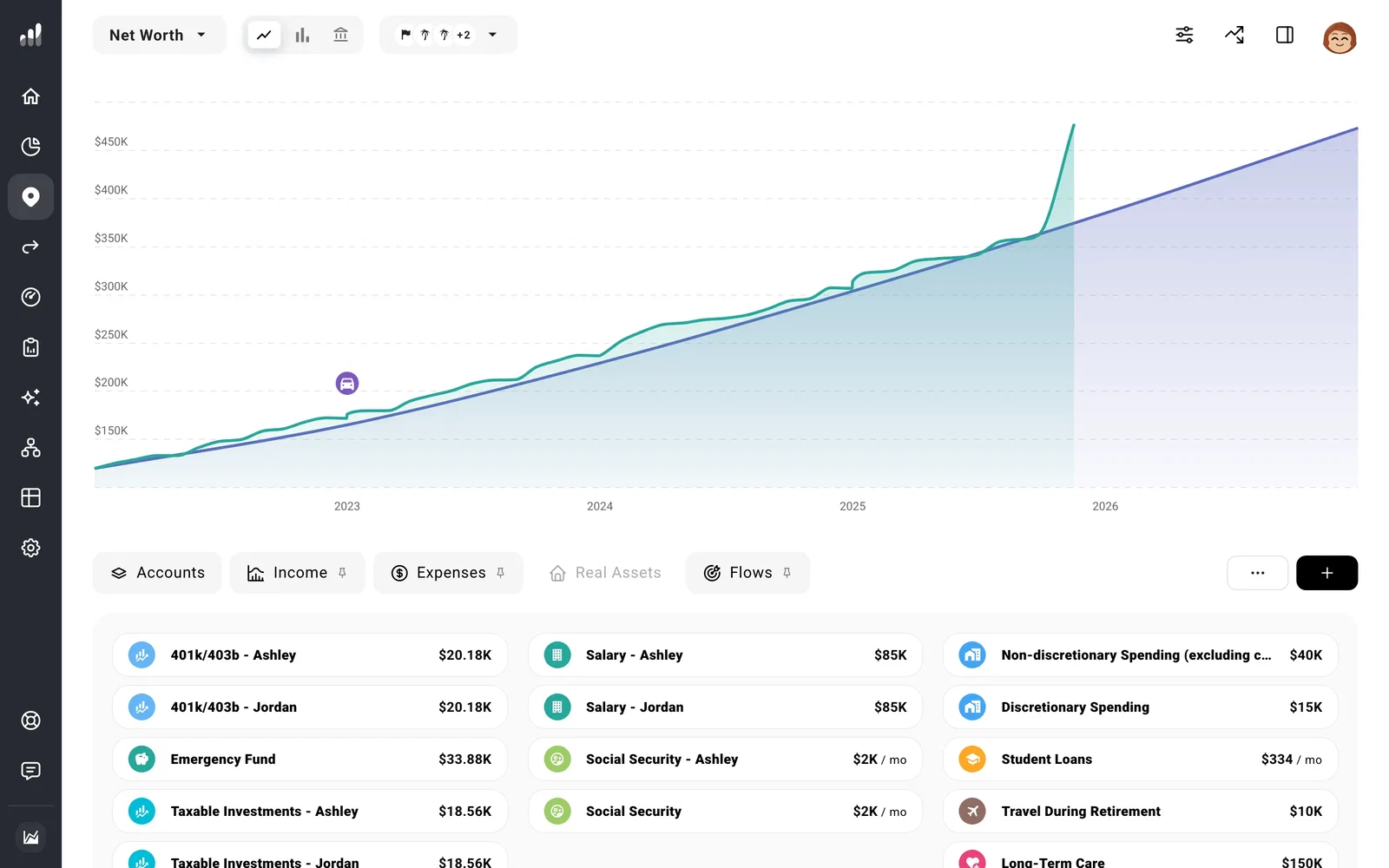
Those recorded values come from your balance history, while the forecast starts with the Fixed Date plan’s own snapshot. You can keep the original forecast intact as you record new balances.
If Actual Progress isn’t showing, make sure your recorded balances fall within the plan’s date range and finish any active comparison. If you’ve hidden the line, turn it back on in the chart’s display controls.
